
Record a customer payment: bank charges and foreign currency
3-minute read · Last updated 3 November 2026
Record money received against an issued invoice, including bank charges the bank deducted and the exchange rate for a foreign-currency payment.
Before you start
- You need a role that can manage payments. The Owner, Admin and Accountant roles can do this by default.
- The invoice is issued and not yet fully paid. See Create and issue a tax invoice.
- The bank account the money went into is set up. See Bank accounts.
Steps
- Go to Sales › Invoices and open the invoice the customer paid. A payment always starts from the invoice (or, for money received before an invoice, from Advance receipt on the Payments page), so there is no "+" beside Payments in the menu.
- Click Record payment. The Record payment form opens with the customer and the invoice filled in.
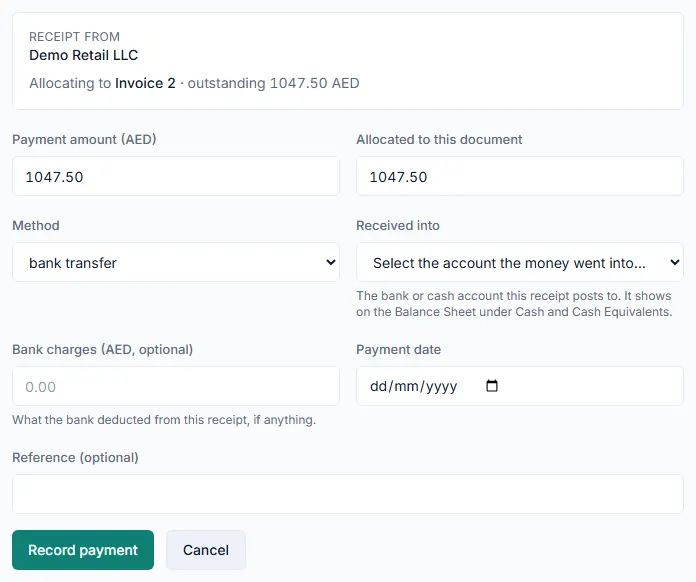
- Check the box at the top. It shows who the receipt is from, the invoice it is allocated to and the amount outstanding.
- In Payment amount (AED), enter the full amount the customer paid. The label shows the invoice currency, so a US dollar invoice reads Payment amount (USD).
- In Allocated to this document, enter how much of this payment settles this invoice. It starts as the outstanding balance.
- Choose the Method, for example bank transfer, cash, card or cheque.
- Under Received into, choose the bank or cash account the money went into.
- Set the Payment date.
- Add a Reference (optional), such as the bank transaction number.
Bank charges
- If the bank deducted a fee from the money it received, enter it in Bank charges (AED, optional). This field appears for a bank transfer, card or cheque receipt.
- Check the line under the field. It shows what the bank receives and the charge that goes to Bank Charges. The customer is still credited the full amount.
Foreign currency
- If the payment is not in your base currency, enter the rate in the exchange rate field. For a US dollar payment it reads Exchange rate (AED per 1 USD) on the payment date. The invoice's own rate is shown under the field as a hint.
- If the foreign payment went into an AED bank account, also fill in Amount the bank credited in AED. Take this figure from your bank statement.
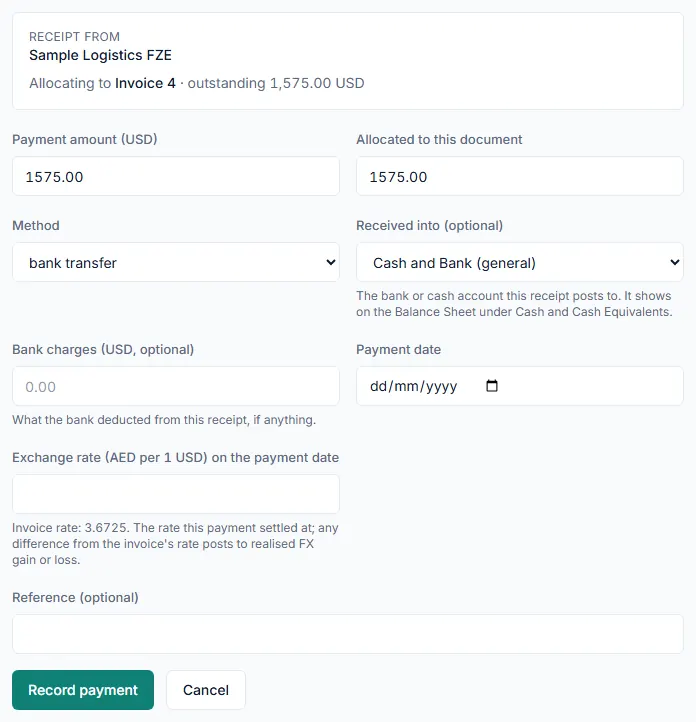
- Click Record payment.
What happens next
- RTS Book opens the payment. It shows the Amount, Allocated and Unallocated figures and the Allocations list.
- The invoice status changes to Partially paid or Paid.
- If the payment rate differs from the invoice rate, the difference posts to realised FX gain or loss.
- If you received more than you allocated, the rest stays on the customer's account. You can use it later with Apply credit on the Customers list, or, when the form offers it, tick Advance for a supply not yet invoiced to issue an advance tax invoice for it.
Common mistake
Do not enter the net amount that reached your bank as the payment amount. Enter what the customer paid and put the bank's fee in Bank charges (AED, optional). If you enter the net amount, the invoice stays partly unpaid and your bank figure is still right, so the gap is hard to find later.
Related
Last updated: 3 November 2026