
Import a bank statement and reconcile
3-minute read · Last updated 3 November 2026
Import your bank statement as a CSV file, match each bank line to your books, and reach a zero difference.
Before you start
- Your role must allow you to manage banking. The Owner, Admin and Accountant roles can.
- The bank account must exist in RTS Book. See Bank accounts.
- Download the statement from your bank as a CSV file. It needs a header row, a date column and one amount column, where money in is positive and money out is negative.
- Record the payments, receipts and expenses you already know about first. That way most bank lines have something in your books to match.
Steps
Import the statement
- Go to Banking › Banking.
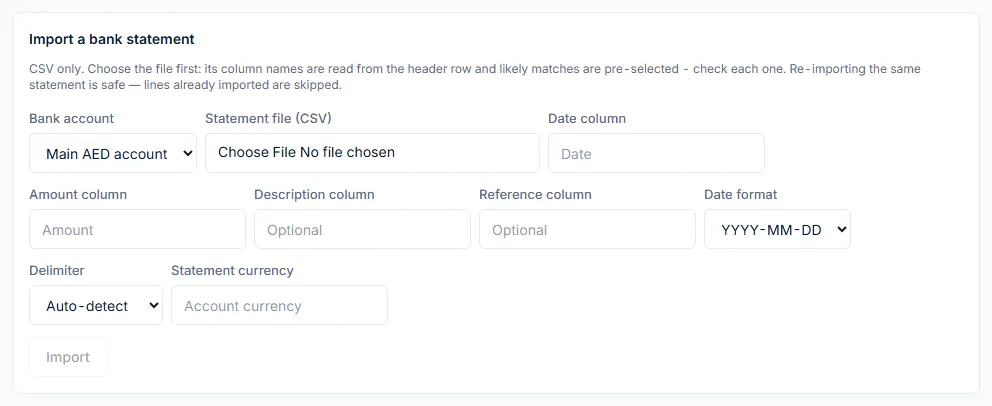
- In Import a bank statement, choose the Bank account.
- In Statement file (CSV), choose the file. RTS Book reads the column names from the header row and picks likely matches.
- Check the Date column and Amount column. Change them if the wrong column was picked.
- Choose a Description column and Reference column if your file has them.
- Choose the Date format your bank uses: YYYY-MM-DD, DD/MM/YYYY or MM/DD/YYYY.
- Leave Delimiter on Auto-detect unless the columns come out wrong.
- Leave Statement currency empty to use the account's currency.
- Click Import. RTS Book shows how many lines were imported and how many were duplicates.
Match the bank lines
- In the Bank account list above the figures, choose the account and click Apply. Set an As at date if you are reconciling to a statement date.
- Look at Unmatched bank lines.
- For a line, click Auto-match. If exactly one entry in your books has the same amount, direction and a date close to it, the line is matched. RTS Book tells you the result above the table: 1 line matched, No match found, or Several possible matches - choose one by hand.
- If the line is still unmatched, open Match to book line…, choose the entry by its date and amount, and click Match.
- For a line with nothing in your books, such as a bank charge, choose an account in the account list on that row and click Post bank-only. This posts the line to that account and matches it. The list holds your income and expense accounts.
Note: on a bank account in a foreign currency, Post bank-only is refused because the line needs an exchange rate. Record it as a payment or expense in that currency instead, then match it.
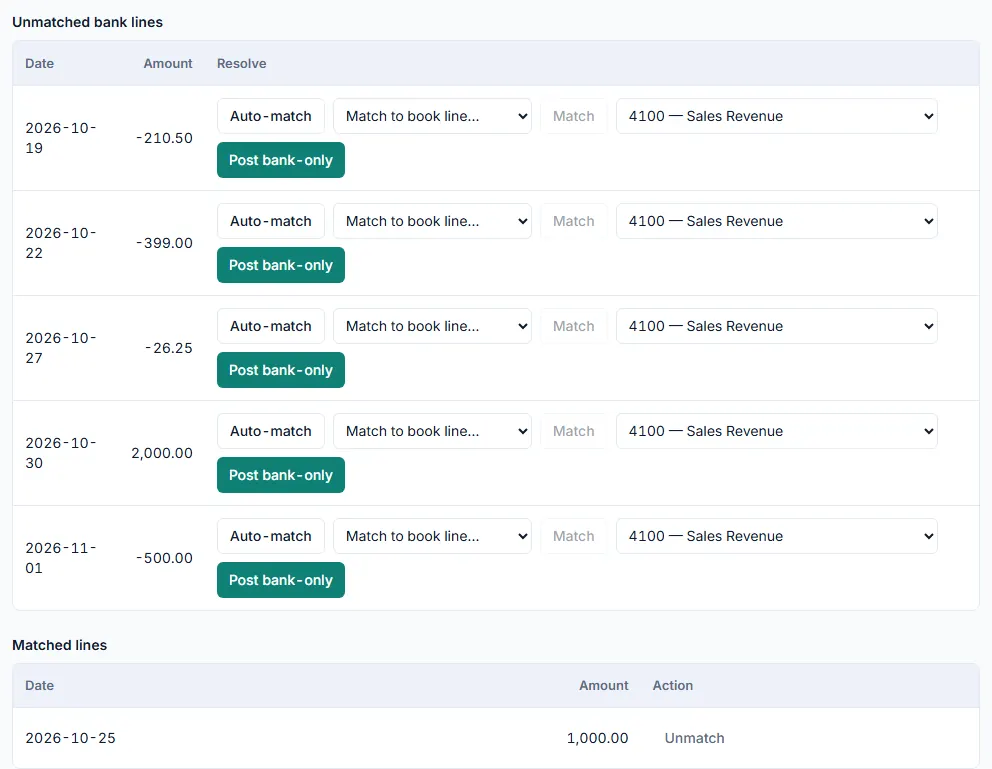
- Repeat until Unmatched bank lines is empty.
- Check the three figures at the top: Balance per books, Balance per statement and Difference. When the difference is zero, the badge shows Reconciled.
- Click Download PDF to save the reconciliation.
What happens next
- Matched lines move to Matched lines. Click Unmatch to undo a match.
- Click View statement lines to see every imported line with its status, Matched or Unmatched, and a running balance from the opening balance.
- Unmatched book entries lists entries in your books that no bank line has matched yet, such as a cheque that has not cleared.
- Importing the same statement again is safe. Lines already imported are skipped.
Common mistake
If any row in the file cannot be read, nothing is imported. You see Nothing was imported — fix these rows and try again: with the row numbers. The usual cause is the wrong Date format, an amount with text in it, or a date that falls in a period where the books are closed. Fix the file or the settings and import again.
Related
Last updated: 3 November 2026