
Quotes and converting a quote to an invoice
3-minute read · Last updated 3 November 2026
Create a quote, issue and send it to your customer, record their answer, and turn an issued quote into a draft tax invoice.
Before you start
- You need a role that can manage quotes. The Owner, Admin and Accountant roles can do this by default. To convert a quote you also need to be able to create invoices.
- The customer can already exist, or you can add them from the quote. See Customers.
- To send the quote by email, the customer needs an email address on their card.
Steps
- Go to Sales › Quotes.
- Click New quote.
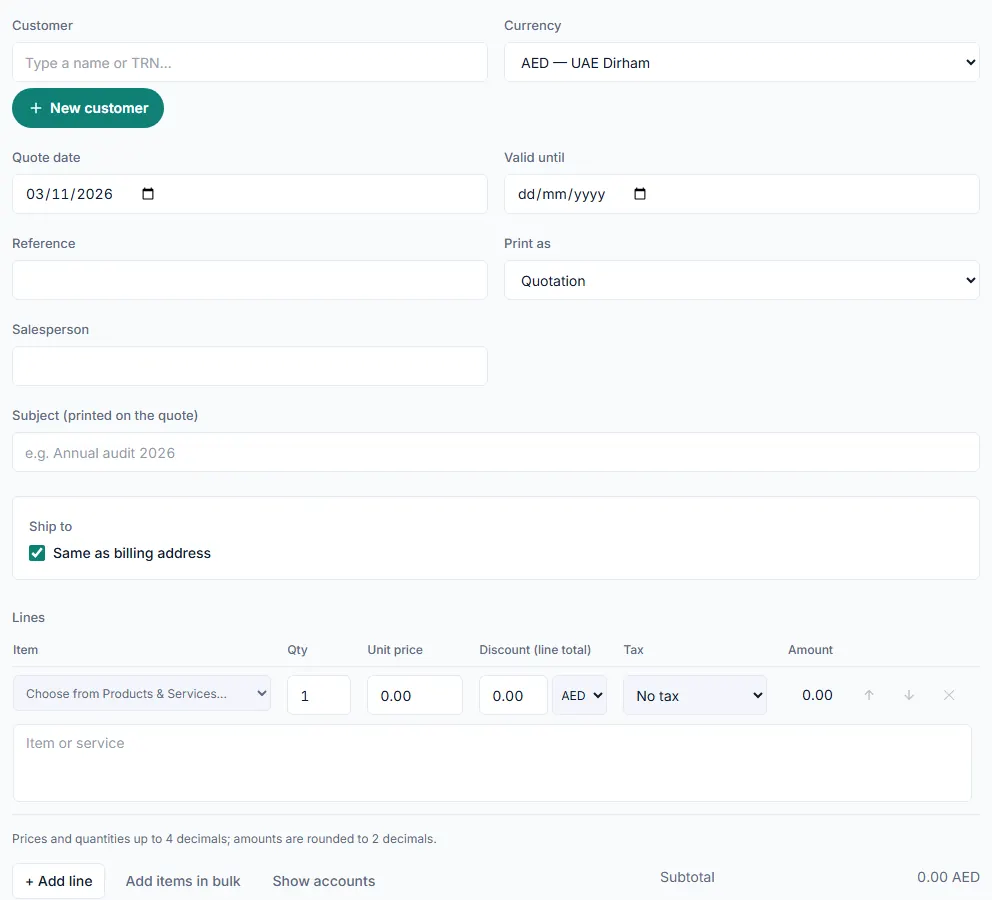
- Under Customer, search for the customer by name or TRN. To add a new one without leaving the quote, click New customer.
- Check the Currency. If it is not AED, fill in the exchange rate field. For a quote in US dollars it reads Exchange rate (1 USD = ? AED).
- Set the Quote date and the Valid until date.
- Add a Reference and a Salesperson if you use them.
- Under Print as, choose Quotation or Proforma Invoice.
- Type a Subject (printed on the quote) if you want one.
- Check the Ship to section if goods go to a different address.
- Under Lines, pick an item from Choose from Products & Services… or type a description in Item or service.
- Enter the Qty, Unit price, any Discount (line total) and the Tax code. Click + Add line for each extra line.
- Add any Notes (printed on the document).
- Click Save as Draft to keep working later, or click Save and Send to issue the quote and email it. A draft has no number. It gets its number when it is issued.
- If you chose Save and Send, the window "Send this quote to the customer?" opens. Add an optional message and click Send.
Note: To issue without emailing, open the arrow next to Save and Send and choose Save and Download PDF. On a saved draft you can also choose Issue quote.
Record the customer's answer
- Open the quote from the Quotes list.
- Click Customer accepted or Customer declined. In the list preview, these are Mark as Accepted and Mark as Declined under the more actions button.
- Confirm with Record accepted or Record declined. The answer is recorded once. After that the quote can no longer be edited. To offer it again, use Clone.
Convert the quote to an invoice
- Open an issued quote. A draft quote has no Convert to invoice button: issue it first.
- Click Convert to invoice.
- In the window "Convert to invoice?", click Create draft invoice.
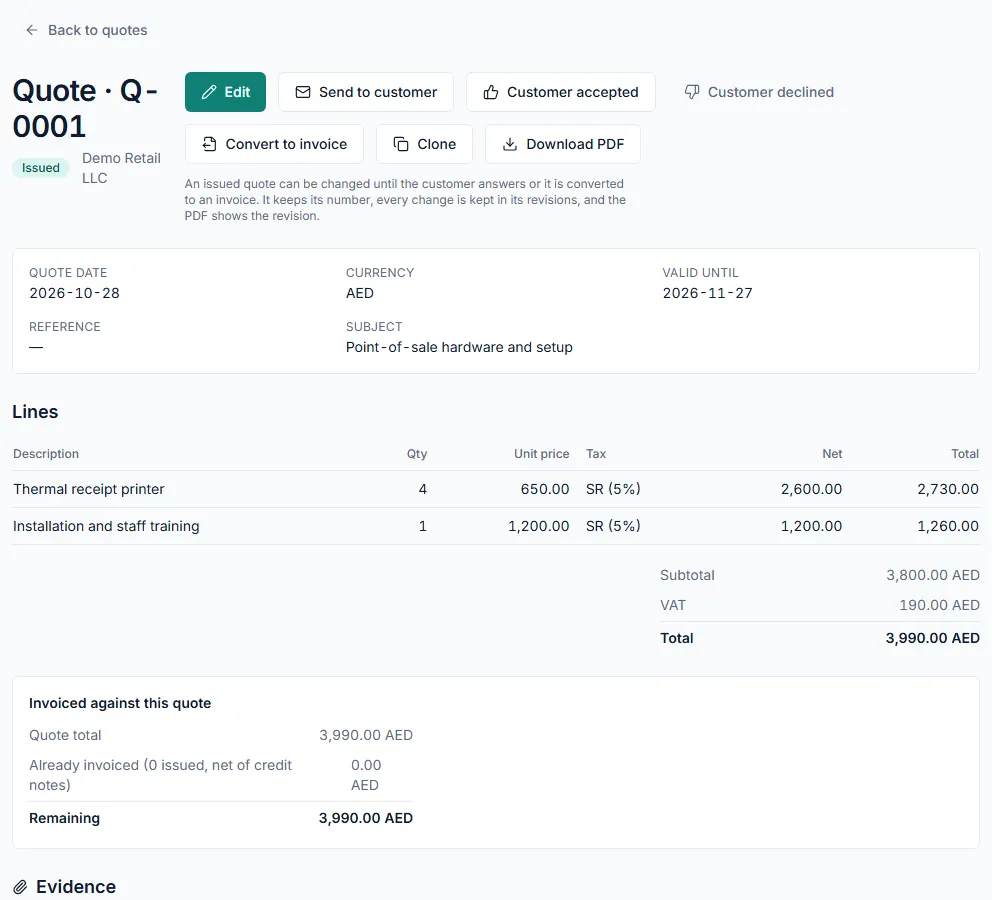
- RTS Book opens the new draft tax invoice. Check it, then issue it. See Create and issue a tax invoice.
What happens next
- The draft invoice copies the quote's customer, currency, exchange rate, reference, notes, ship-to address and lines. The quote itself stays unchanged and shows Invoiced in the list.
- If earlier invoices already cover part of the quote, the new draft is filled with the balance that is left.
- If issuing the invoice would take you past the quote total, RTS Book asks "Issue beyond the quote total?" before it issues.
- An expired quote can still be converted after you confirm with Convert anyway. A declined quote cannot be converted.
Common mistake
Only an issued quote can be converted. If you try to convert a draft, it is refused. Issue the quote first with Issue quote or Save and Send, then convert it. If your company has no TRN, the button reads Convert to commercial invoice and every line of the draft uses the Out of Scope tax code.
Related
Last updated: 3 November 2026