
Create and issue a tax invoice
3-minute read · Last updated 3 November 2026
Save a draft invoice, issue it so it gets its number and posts to the books, and correct it the right way once it is issued.
Before you start
- You need a role that can manage invoices. The Owner, Admin and Accountant roles can do this by default.
- Your company details are complete, including the TRN if you are VAT-registered. See Set up your company.
- The customer exists, or you can add them from the invoice. See Customers.
Steps
- Go to Sales › Invoices.
- Click New invoice.
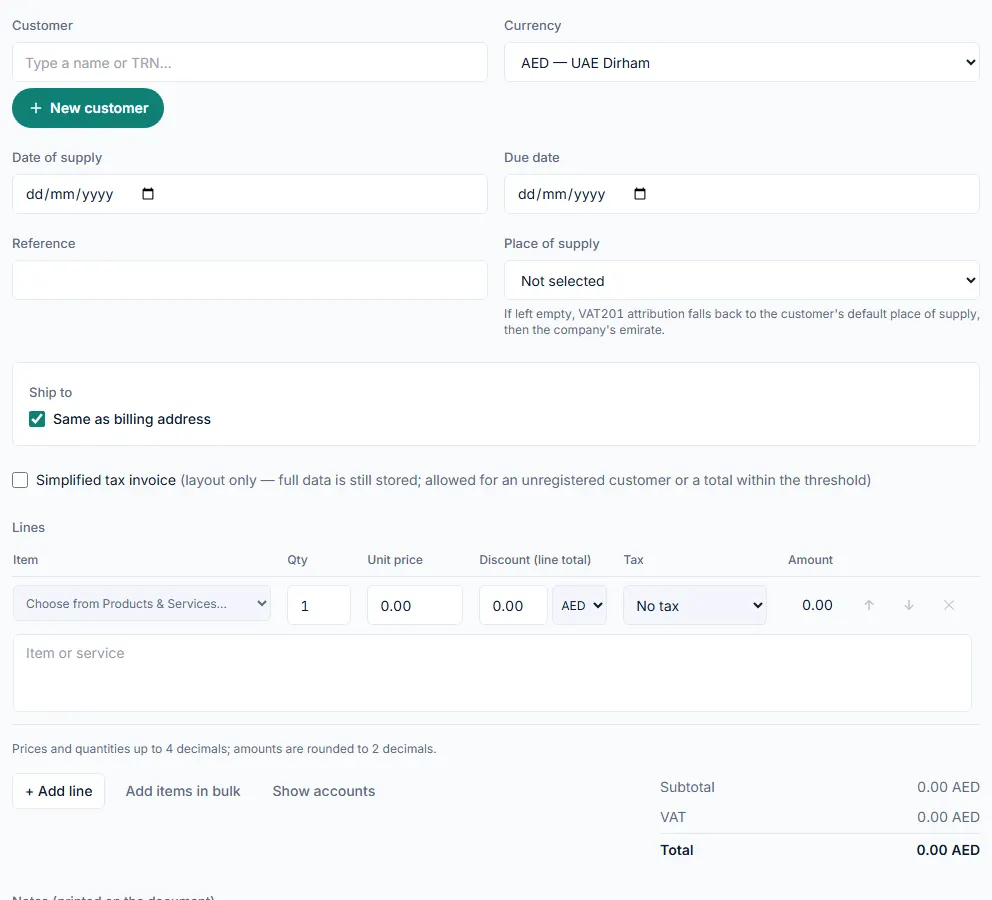
- Under Customer, search for the customer by name or TRN. To add a new one, click New customer.
- Check the Currency. It starts as the customer's currency. If it is not AED, fill in the exchange rate field. For an invoice in US dollars it reads Exchange rate (1 USD = ? AED).
- Set the Date of supply and the Due date.
- Add a Reference if you use one.
- Choose the Place of supply. If you leave it as Not selected, RTS Book uses the customer's default place of supply, then the company's emirate.
- If your company has more than one warehouse, choose the Warehouse that stock-tracked items leave from.
- Check the Ship to section if goods go to a different address.
- Tick Simplified tax invoice only when a simplified invoice is allowed for this sale.
- Under Lines, pick an item from Choose from Products & Services… or type a description in Item or service.
- Enter the Qty, Unit price, any Discount (line total) and the Tax code. Click + Add line for each extra line.
- Add any Notes (printed on the document).
- Click Save draft.
Check and issue the draft
- RTS Book opens the draft. It has no number yet and its status is Draft.
- To change anything, edit the Invoice details section and click Save details, or change the lines and click Save lines.
- Click Issue invoice.
- If something required is missing, RTS Book lists it under "This invoice cannot be issued yet — Article 59 requires:". Fix each item and click Issue invoice again.
Deliver the invoice
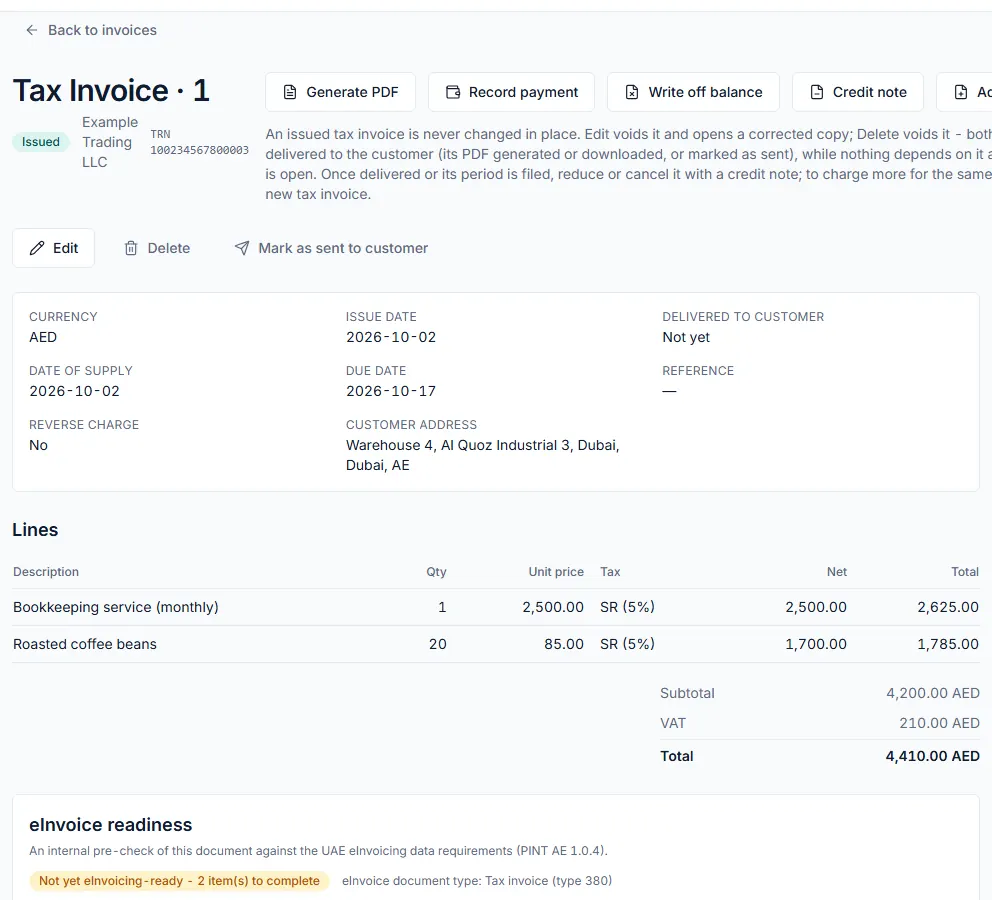
- Click Generate PDF to create the invoice PDF for your customer.
- If you sent the invoice another way, click Mark as sent to customer, then Mark as sent. This cannot be undone.
What happens next
- The invoice gets its number, its status changes to Issued and it is posted to your books. Stock-tracked items leave stock.
- An issued tax invoice is never changed in place. Before it is delivered to the customer, Edit voids it and opens a corrected copy (confirm with Void and edit a copy), and Delete voids it. Both work only while nothing depends on it and its VAT period is open.
- Once it is delivered or its VAT period is filed, click Credit note to reduce or cancel it. This opens a draft credit note filled from the invoice.
- To charge more for the same supply, click Additional invoice.
- When the customer pays, click Record payment. See Record a customer payment.
Common mistake
Generating or downloading the PDF counts as delivering the invoice. After that, Edit and Delete are disabled and the only way to correct it is a credit note. Check every line and the customer details on the draft before you issue the invoice and generate its PDF.
Related
Last updated: 3 November 2026