
Products and services: units and HS code
3-minute read · Last updated 3 November 2026
Save the goods and services you sell with a price, tax code, an official unit of measure and, for goods, an HS code.
Before you start
- You need a role that can manage products and services. The Owner, Admin and Accountant roles can do this by default.
- Your tax codes and chart of accounts are set up for the company, so you can choose them on each item.
Steps
- Go to Products & Services.
- Click New product.
- Choose the Type: Service or Product. Choose Product for goods. Some fields below appear only for goods.
- Type the Name. Add a SKU if you use item codes.
- Enter the Unit price and choose the Currency. The price can have up to 4 decimals.
- Choose the Sales tax code and the Purchase tax code.
- Choose the Income account and the Expense account if this item should post to its own accounts.
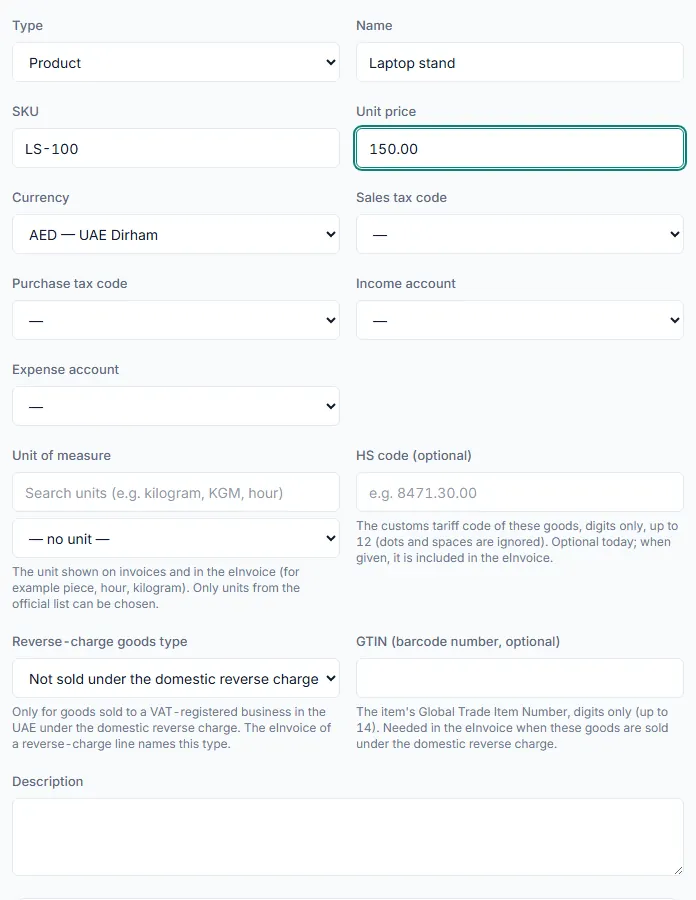
Choose the unit of measure
- Under Unit of measure, type in the search box, for example "kilogram", "KGM" or "hour".
- Pick the unit from the list. Units under Common come first, then All official units. Only units from the official list can be chosen.
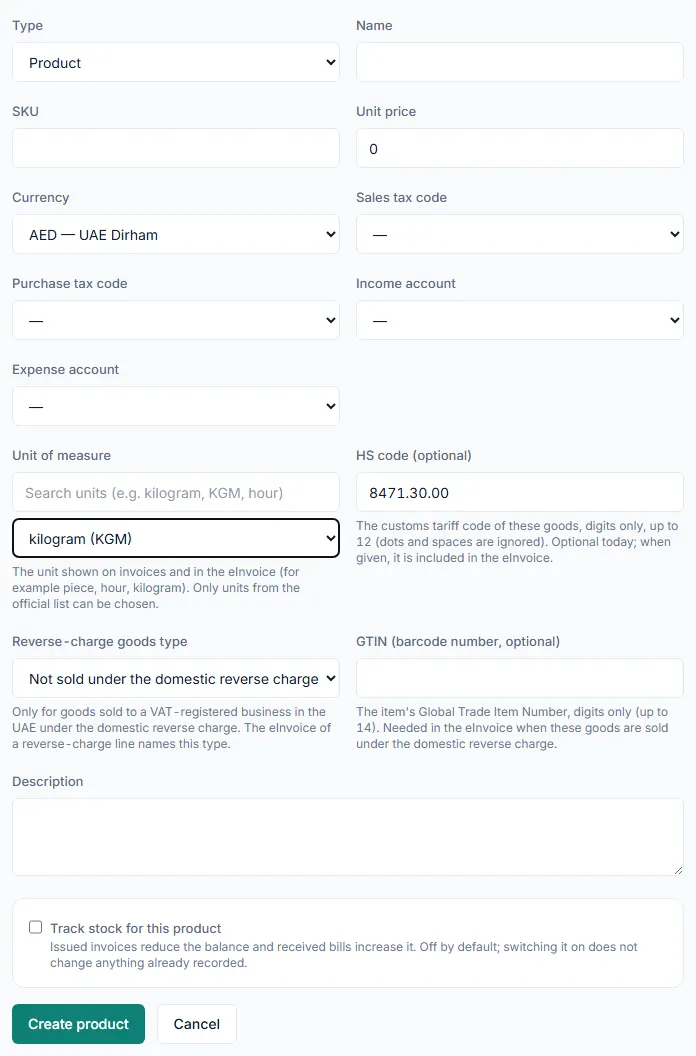
Add the HS code and other goods details
- For a product, type the HS code (optional). This is the customs tariff code of the goods. Use digits only, up to 12. Dots and spaces are ignored.
- If the goods are sold to a VAT-registered business in the UAE under the domestic reverse charge, choose the Reverse-charge goods type. Otherwise leave it as Not sold under the domestic reverse charge.
- Add the GTIN (barcode number, optional) if you have it. It is needed in the eInvoice when these goods are sold under the domestic reverse charge.
- Add a Description.
- For goods you keep in stock, tick Track stock for this product. A unit is required before stock tracking can be switched on.
- Click Create product.
What happens next
- The item appears on the Products & Services list and can be chosen on quote and invoice lines with Choose from Products & Services….
- The unit is shown on invoices and in the eInvoice. When an HS code is given, it is included in the eInvoice.
- If any item has a unit that is not on the official list, the list shows a warning with a Fix units link. On that screen you can check each suggestion and click Apply all suggestions. Documents already issued are not changed.
Common mistake
A short HS code shows the warning "Check this code against the customs tariff - most codes have 6 to 12 digits". This is not an error, but check the full code with your customs documents before you save. Also note that once stock has moved for a product, its unit cannot be changed.
Related
Last updated: 3 November 2026