
Set up your company: TRN, address, logo, signature and stamp
3-minute read · Last updated 3 November 2026
Enter your TRN, address and contact details, then add the logo, signature and stamp that print on your invoices and other documents.
Before you start
- You must be the company owner. Other users see this page as read-only.
- Have your TRN, trade licence details and company address ready.
- For the logo, signature and stamp, have each image ready as a PNG or JPEG file. SVG files are not accepted.
Steps
Enter the company details
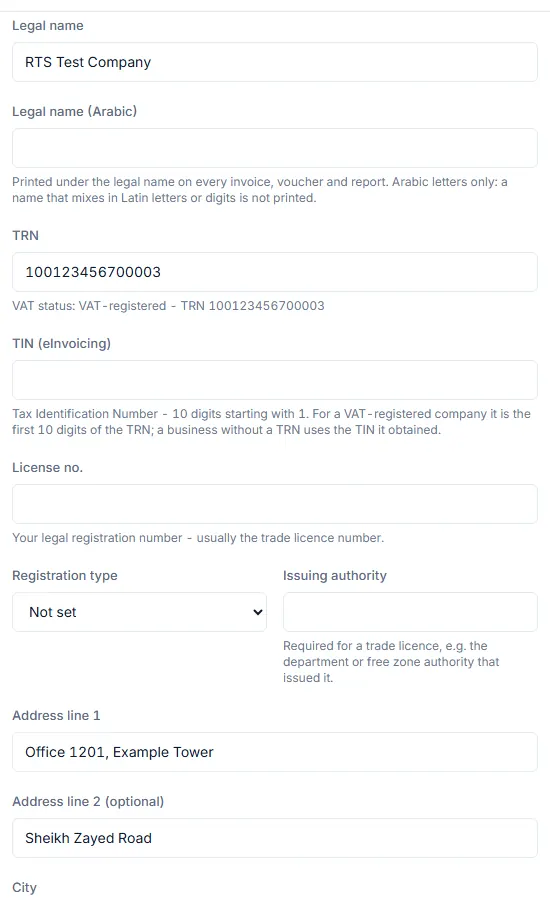
- Go to Company. The page Company & tax profile opens.
- Check Legal name. If you want your Arabic name printed under it, type it in Legal name (Arabic). Use Arabic letters only.
- In TRN, type your 15-digit Tax Registration Number. Leave it empty if your company is not VAT-registered.
- In TIN (eInvoicing), type your Tax Identification Number if you have one. For a VAT-registered company it is the first 10 digits of the TRN.
- Fill in License no., Registration type and Issuing authority from your trade licence.
- Fill in Address line 1, Address line 2 (optional), City and Postal code.
- Choose your Emirate.
- In Country, type AE for the United Arab Emirates.
- Fill in Phone, E-mail and Website if you want them printed under your address.
- Tick Free zone company if your company is in a free zone.
- Type your Payment terms and conditions and your Bank details. Use Latin script only.
- Type the Signatory name and Signatory title of the person who signs your documents.
- Click Save changes. The form shows Saved.
- If your company is VAT-registered, enter the date in VAT registration date and click Save.
Add your logo
- In the Logo section, click the file box and choose your logo. It must be 1 MB or smaller.
- Wait until Saving… disappears. The logo preview appears in the section.
Add your signature and stamp
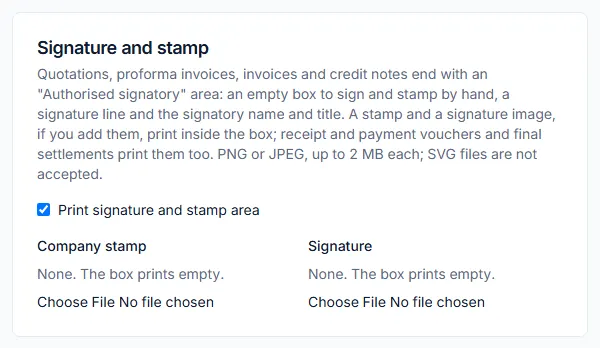
- In the Signature and stamp section, tick Print signature and stamp area.
- Under Company stamp, click the file box and choose your stamp image. It must be 2 MB or smaller.
- Under Signature, click the file box and choose your signature image. It must be 2 MB or smaller.
What happens next
- The TRN line shows your VAT status. With a TRN, your sales documents are tax invoices. Without one, they are issued as Commercial Invoices.
- The logo prints at the top right of every invoice, credit note, quotation, statement and report. It is resized to at most 600 pixels on its longest side.
- With the signature and stamp area on, quotations, proforma invoices, invoices and credit notes end with an "Authorised signatory" box. Your stamp and signature print inside it.
- The Complete your company profile step on the Home page is ticked once the TRN and the emirate are saved.
- To replace an image, choose a new file. To delete it, click Remove logo or Remove.
Common mistake
The TRN must be exactly 15 digits, with no spaces, dashes or letters. If you paste it from another document, check for spaces before you click Save changes. If the form shows "TRN must be exactly 15 digits", correct the number and save again.
Related
Last updated: 3 November 2026