
VAT periods and preparing a VAT return: the VAT 201 boxes
4-minute read · Last updated 3 November 2026
Open a VAT period, review the VAT 201 boxes RTS Book prepares from your documents, then finalise and lock the period. You file the return in EmaraTax.
Before you start
- You need a role that can manage VAT to open, finalise and lock a period. A role that can only view VAT can open a period and read its figures, but sees no buttons.
- Your company must have its TRN saved. Without a TRN the VAT page says the company is not registered for VAT and prepares no return. See Set up your company.
- Your invoices, credit notes, bills and expenses for the period should be entered first, so the figures are complete.
Steps
Open a VAT period
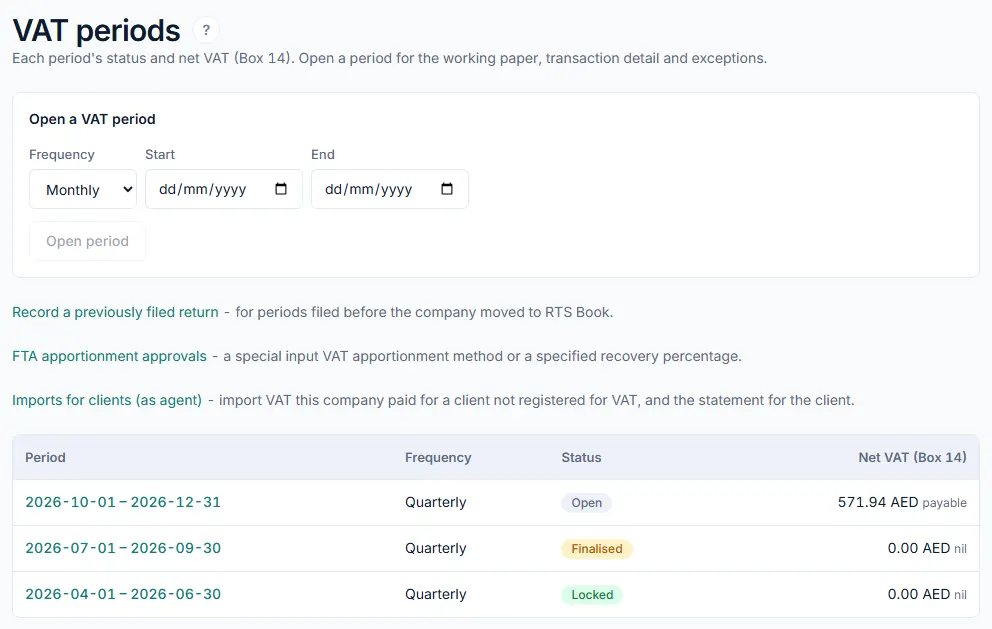
- Go to Tax › VAT. The page is called VAT periods.
- In the Open a VAT period box, choose the Frequency: Monthly or Quarterly.
- Enter the Start and End dates of the period.
- Click Open period. The period appears in the list with the status Open.
Review the VAT 201 boxes
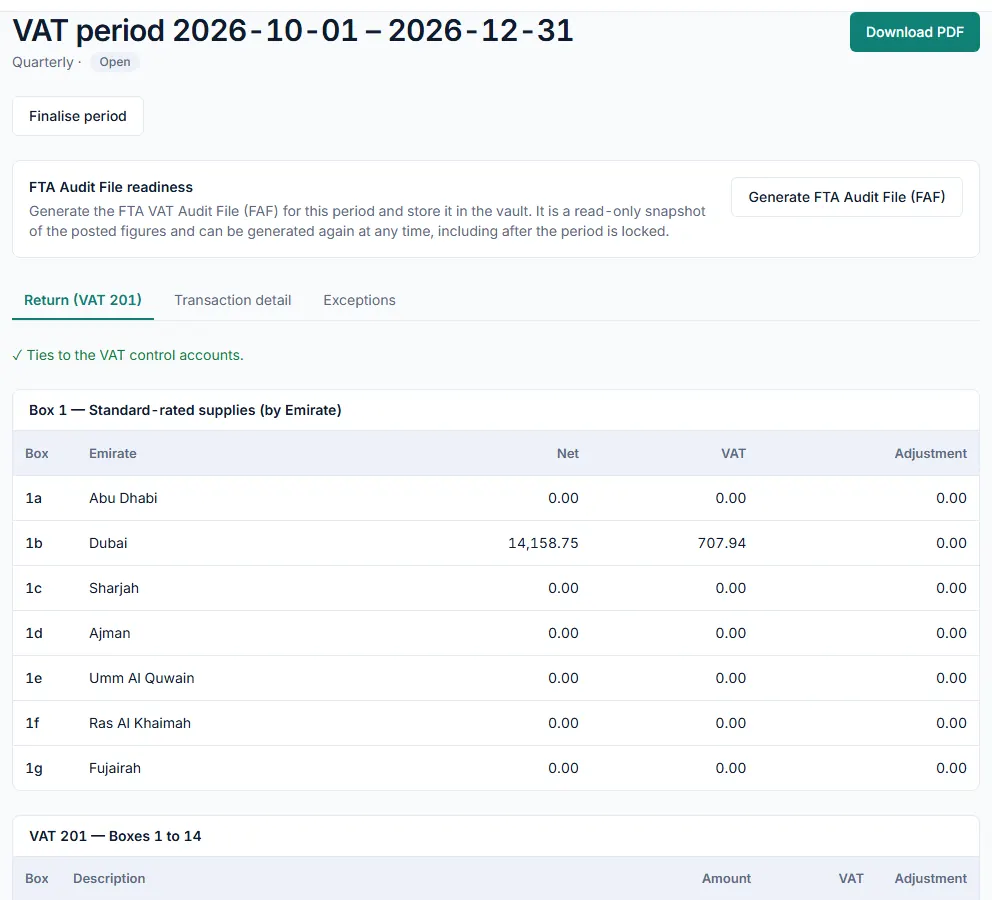
- Click the period dates in the list to open the period.
- Stay on the Return (VAT 201) tab.
- Check the line at the top. Ties to the VAT control accounts. means the return matches your ledger. If it says the return does not tie, it shows the difference you need to find.
- Read the Box 1 — Standard-rated supplies (by Emirate) table. It splits Box 1 by Emirate, from 1a Abu Dhabi to 1g Fujairah.
- Read the VAT 201 — Boxes 1 to 14 table. It shows an Amount, VAT and Adjustment column for each box:
- Box 1: Standard-rated supplies (by Emirate)
- Box 2: Tax Refunds provided to Tourists under the Tax Refunds for Tourists Scheme
- Box 3: Supplies subject to the reverse charge provisions
- Box 4: Zero Rated Supplies
- Box 5: Exempt Supplies
- Box 6: Goods imported into the UAE
- Box 7: Adjustments to goods imported into the UAE
- Box 8: Totals
- Box 9: Standard Rated Expenses
- Box 10: Supplies subject to the reverse charge provisions
- Box 11: Totals
- Box 12: Total value of due tax for the period
- Box 13: Total value of recoverable tax for the period
- Box 14: Payable tax for the period
- Below the table, read the Box 14 line. It tells you whether the net VAT is payable, refundable or nil, and the amount.
- If your books have imports, find the Box 6 — check against EmaraTax box. Enter the Box 6 Amount in EmaraTax (AED) and Box 6 VAT in EmaraTax (AED) that EmaraTax shows for the period, then click Save EmaraTax figure. Box 6 then shows the EmaraTax figure and Box 7 shows the difference to your books.
- Open the Transaction detail tab to see every document behind the figures, with its treatment, rate and box.
- Open the Exceptions tab. Fix every item under Errors. Warnings are for your review and do not stop you.
- Click Download PDF to save the working paper for your records or your accountant.
Finalise and lock the period
- Make sure the accounting books are locked through the period end. The company owner or an admin does this in the Accounting lock card on the Company page.
- On the period page, click Finalise period.
- Read the message and click Confirm finalise. The status changes to Finalised and the figures are frozen for review.
- File the return yourself in EmaraTax, using the figures from RTS Book.
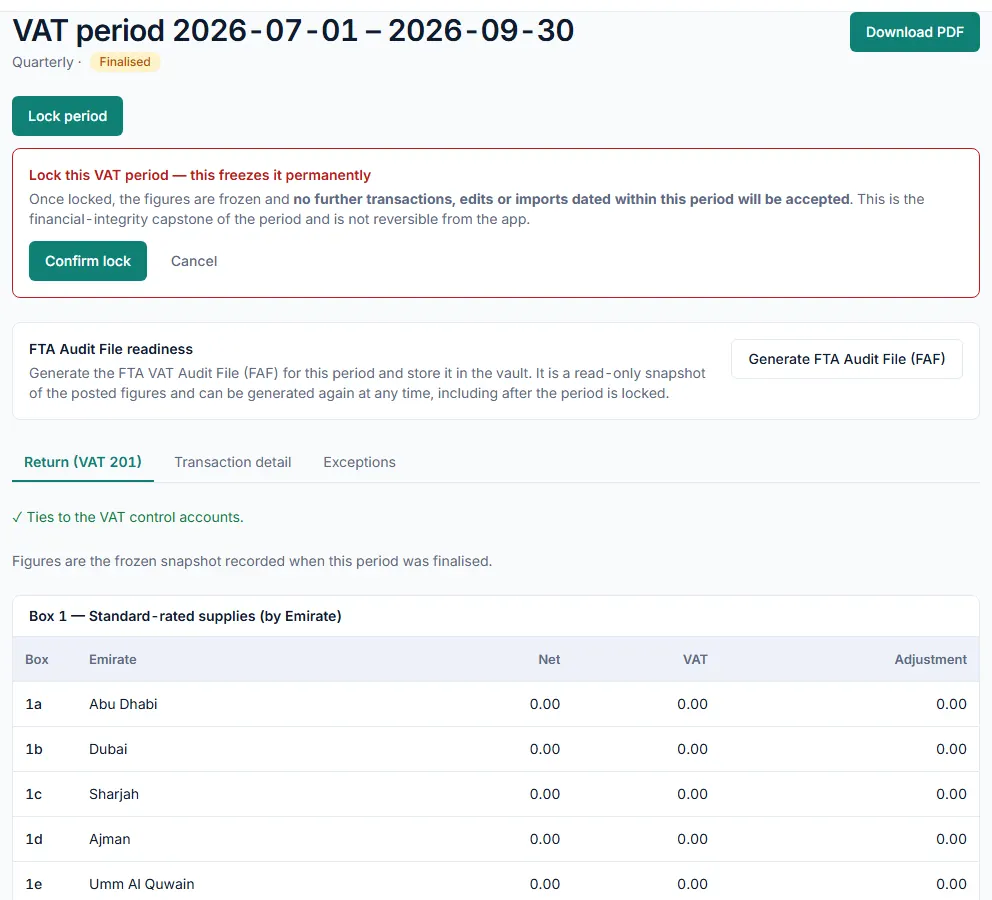
- Back on the period page, click Lock period.
- Read the warning and click Confirm lock. The status changes to Locked.
What happens next
- RTS Book prepares the figures. It does not send anything to the FTA: you review them and file the return in EmaraTax yourself. The figures are designed for professional review before filing.
- A finalised period keeps a frozen copy of its figures. If a document changes later, the period page shows how the live figures differ from the frozen ones.
- A locked period is permanent. No transactions, edits or imports dated inside it are accepted, and it cannot be reopened from the app.
Common mistake
Clicking Finalise period before the books are locked or before every error on the Exceptions tab is fixed. RTS Book refuses to finalise and shows why. Lock the books through the period end, clear the errors, check that the return ties to the VAT control accounts, then finalise again.
Related
Last updated: 3 November 2026