
Create your account and company
2-minute read · Last updated 3 November 2026
Sign up with your company name, email and password, confirm your email, and start your free trial. No payment card is needed.
Before you start
- You need an email address that you can open now. RTS Book sends a confirmation link to it.
- The email address must not already have an RTS Book account. One account belongs to one workspace.
- You need the right to accept the Terms & Conditions, the Privacy Policy and the Data Processing Terms for your company.
Steps
- Open the RTS Book sign-in page and click Create one.
- In Company name, type your company's legal name.
- In Your name, type your name. This field is optional.
- In Email, type your work email address.
- In Password, type a password of at least 8 characters.
- Tick the box that starts with I agree to the Terms & Conditions. The links open each document in a new tab, so you do not lose what you typed.
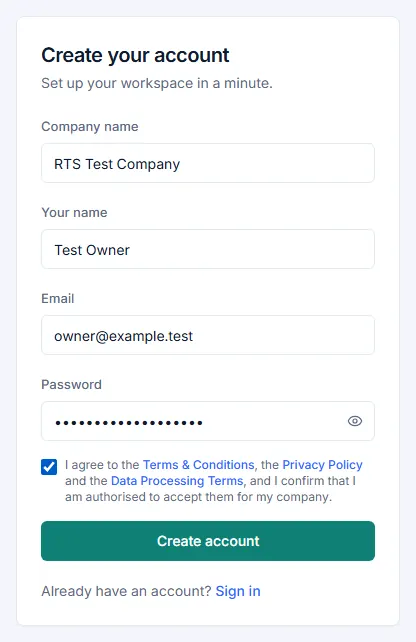
- Click Create account.
- If RTS Book warns you that a company with this name is already registered, choose one option. Click Create a new company anyway if this is a new, separate company. Click Sign in to the existing one if your company already uses RTS Book.
- Open the email from RTS Book and click the confirmation link.
- Click Confirm my email address. The page shows Email confirmed.
- Click Sign in and sign in with your email and password.
What happens next
- RTS Book creates your workspace and your company. You are its Owner, with full access.
- Your company starts with a default chart of accounts and UAE tax codes, so you can begin work straight away.
- New companies start with a 14-day free trial. No payment card is required to begin the trial. The sidebar shows Free trial with the time left and an Upgrade button.
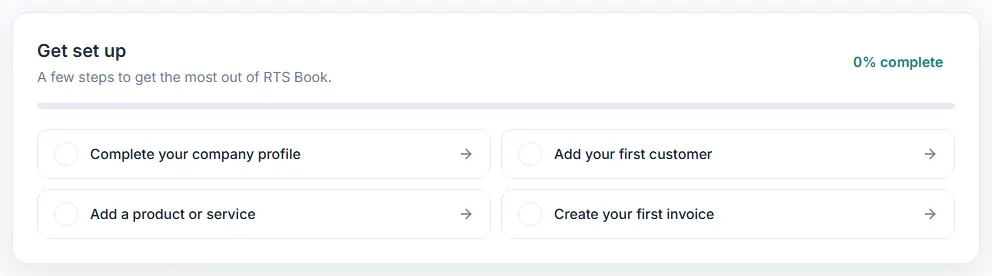
- The Home page shows a Get set up checklist. Start with Complete your company profile.
Common mistake
You cannot sign in until you confirm your email address. If the sign-in fails and you have not clicked the link, look for the RTS Book email in your spam folder. You can also click Request a new link under the sign-in error to get a new confirmation email. An old link stops working when a new one is sent.
Related
Last updated: 3 November 2026