
Reports: Trial Balance, P&L, Balance Sheet, General Ledger and aging
3-minute read · Last updated 3 November 2026
Run the Profit and Loss, Balance Sheet, Trial Balance, General Ledger and aging reports for any date, and download them as a PDF or a spreadsheet file.
Before you start
- Your role must allow you to view financial reports. The Owner, Admin and Accountant roles can.
- Reports are read straight from your general ledger. Only issued invoices, approved bills, recorded expenses, payments and posted journals appear. Drafts do not.
- All reports use the accrual basis. The report header shows Basis: Accrual.
Steps
- Go to Accounting › Reports.
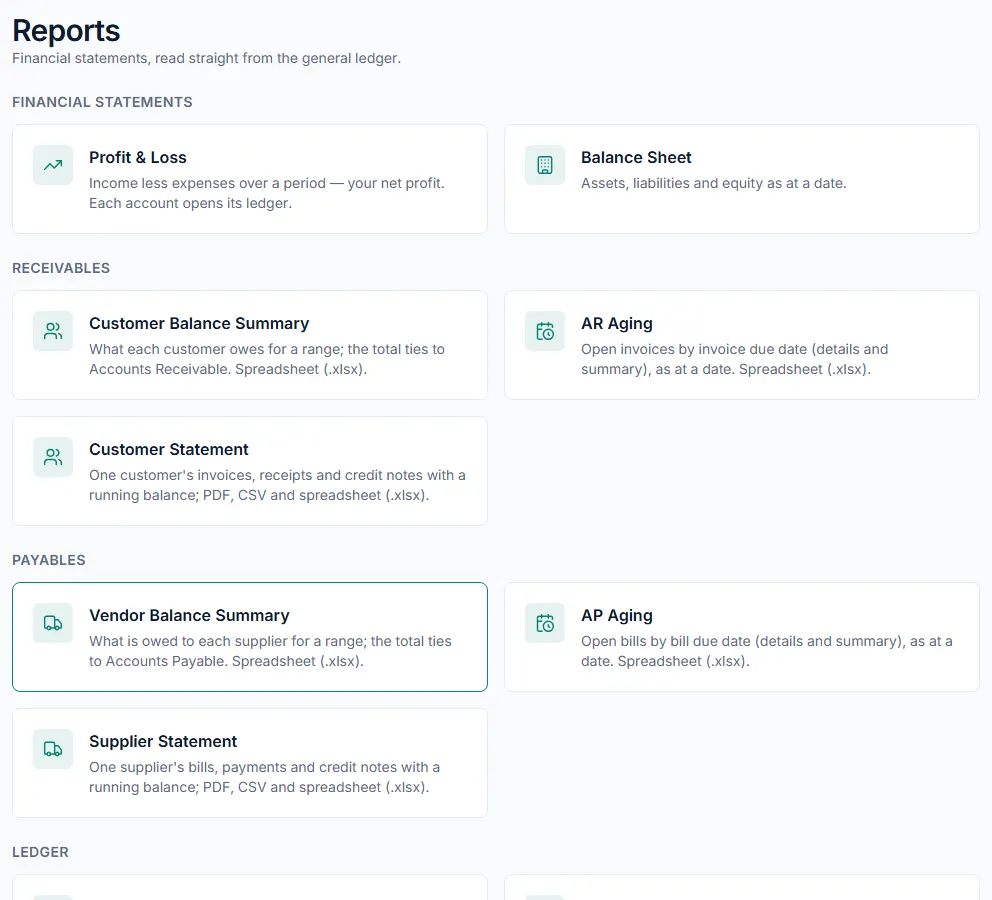
- Find the report in its group: Financial statements, Receivables, Payables or Ledger.
Profit & Loss
- Click Profit & Loss.
- Set From and To. If you leave them empty, the report runs from the start of your financial year to today.
- Click Apply.
- Click an account to open its ledger.
- Click Download PDF, or Download spreadsheet (.xlsx) beside it.
Balance Sheet
- Click Balance Sheet.
- Set the As of date. If you leave it empty, it uses today.
- Click Apply, then Download PDF, or Download spreadsheet (.xlsx) beside it.
Trial Balance
- Click Trial Balance.
- Set the As at date, or leave it empty for all dates.
- Click Apply, then Download PDF, or Download spreadsheet (.xlsx) beside it.
General Ledger
- Click General Ledger.
- Choose the Account.
- Set From and To if you want a date range.
- Click Apply. Every posting to that account is listed with a running balance.
- Click Download PDF, or Download spreadsheet (.xlsx) beside it. These buttons appear once an account is chosen.
AR Aging and AP Aging
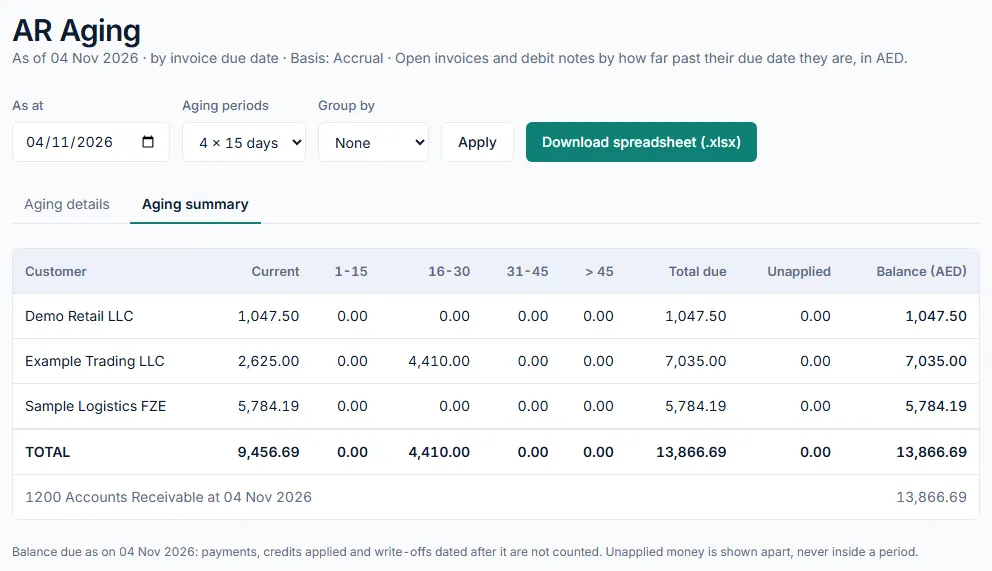
- Click AR Aging for what customers owe, or AP Aging for what you owe suppliers.
- Set the As at date.
- In Aging periods, choose 4 x 15 days or 4 x 30 days.
- In Group by, choose None, or Customer or Supplier to group the rows.
- Click Apply.
- Switch between Aging details, which lists each open document, and Aging summary, which shows one row per customer or supplier.
- Click Download spreadsheet (.xlsx) to save the report as a spreadsheet file.
What happens next
- The PDF prints the same date or period the screen shows.
- The aging reports list open documents by how far past their due date they are, in your base currency. Money received or paid but not yet applied to a document is shown on its own line, not in a period.
- The Receivables and Payables groups also hold Customer Balance Summary, Customer Statement, Vendor Balance Summary and Supplier Statement.
Common mistake
A bill or invoice that is still a draft does not appear in any report. If a total looks too low, check Purchases › Bills and Sales › Invoices for drafts that still need to be approved or issued.
Related
Last updated: 3 November 2026