
Corporate Tax computation
4-minute read · Last updated 3 November 2026
Set up your Corporate Tax profile, open a CT period, review the bridge from accounting profit to taxable income, then finalise and lock the period.
Before you start
- You need a role that can manage Corporate Tax to set up the profile, open a period, edit the computation, finalise and lock. A role that can only view Corporate Tax can read periods and download the reports.
- Your accounting for the period should be complete, because the computation starts from the accounting profit in your books. Check it first in Reports.
- The rates, bands and reliefs come from RTS Book's tax configuration. The computation shows which rate path it used and the configuration version.
Steps
Set up the CT profile and open a period
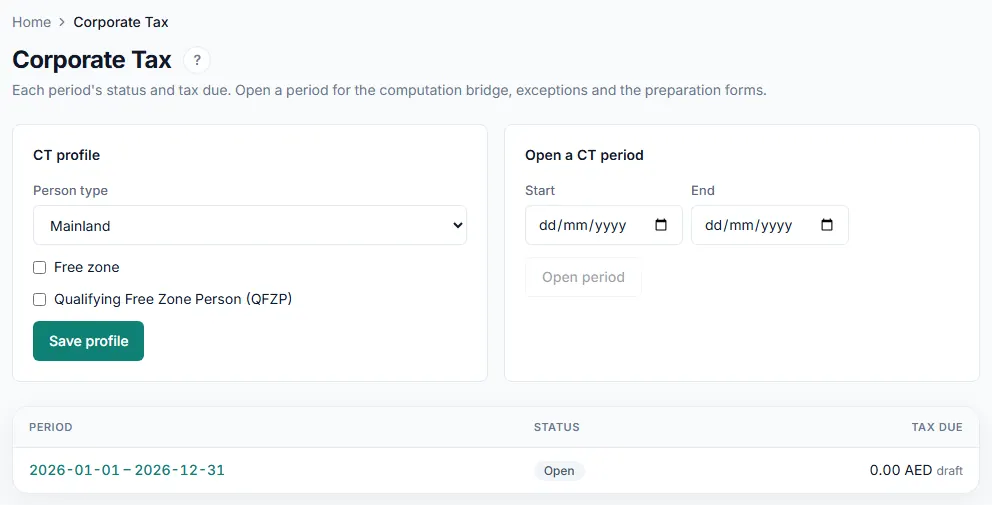
- Go to Tax › Corporate Tax.
- In the CT profile box, choose the Person type: Mainland, Free zone or Exempt.
- Tick Free zone and Qualifying Free Zone Person (QFZP) if they apply to your company.
- Click Save profile.
- In the Open a CT period box, enter the Start and End dates of your tax period.
- Click Open period. The period appears in the list with the status Open.
Prepare the computation
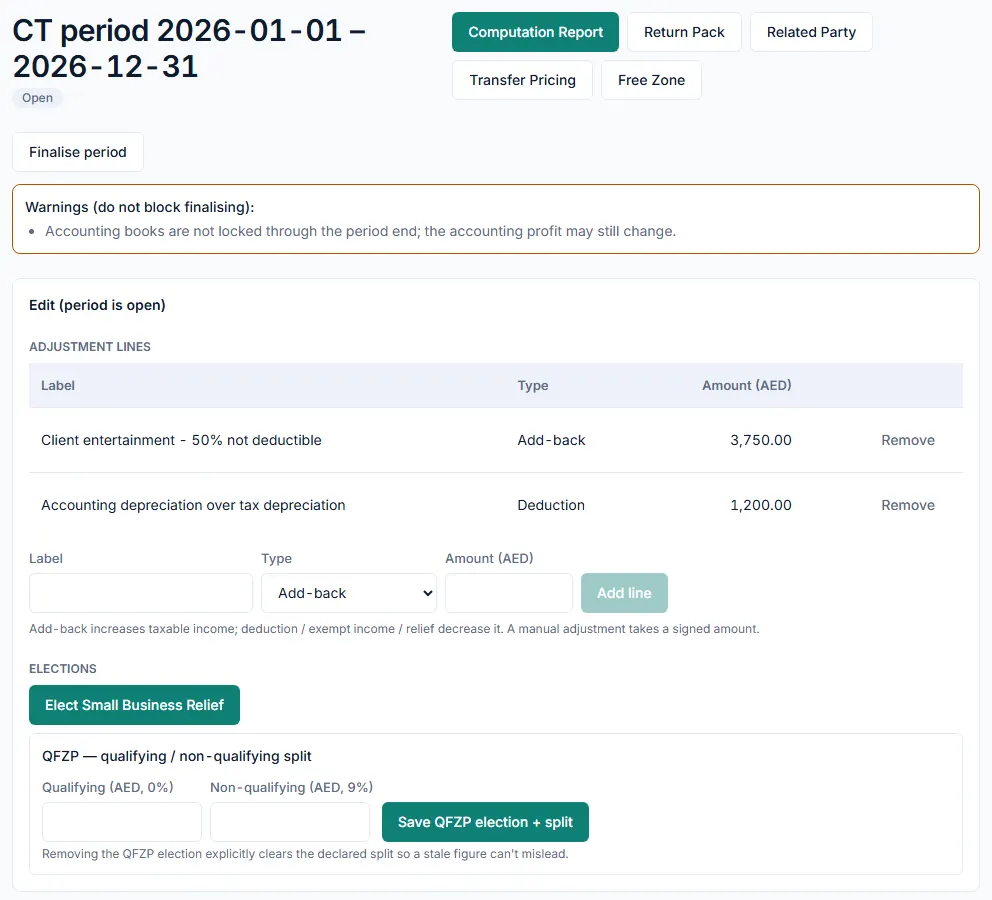
- Click the period dates in the list to open the period.
- In the Edit (period is open) box, click Start the CT computation.
- To add an adjustment, type a Label, choose a Type and enter the Amount (AED). The types are Add-back, Deduction, Exempt income, Relief and Manual adjustment.
- Click Add line. An add-back increases taxable income. A deduction, exempt income or relief decreases it. A manual adjustment takes a signed amount.
- To remove a line, click Remove beside it.
- Under Elections, click Elect Small Business Relief if your company elects it. Click the same button again to turn it off.
- If your company is a Qualifying Free Zone Person, fill in the QFZP — qualifying / non-qualifying split and click Save QFZP election + split.
Review the computation
- Open the Computation tab. The Bridge — accounting profit to taxable income table starts with Accounting profit (before tax), lists each adjustment and ends with Taxable income.
- Below the table, read the Rate line and the Tax due amount. If the period is a loss, the page shows the loss available to carry forward.
- Open the Exceptions tab. Errors block finalisation; warnings are advisory.
- Use the buttons at the top to download the forms you need: Computation Report, Return Pack, Related Party, Transfer Pricing and Free Zone.
Finalise and lock the period
- Fix every blocker listed on the period page. Finalise period stays disabled while there are blockers.
- Click Finalise period, then Confirm finalise. The computation figures and the applied rate and relief configuration are frozen for review.
- File your Corporate Tax return yourself in EmaraTax, using the figures and forms from RTS Book.
- Click Lock period, then Confirm lock. The status changes to Locked.
What happens next
- While a period is open, the computation is marked as a draft and the figures may change. In the list, its tax due shows the word draft.
- A finalised period is read-only. A locked period is frozen permanently: the computation, adjustment lines and elections cannot be edited, and the lock cannot be undone from the app.
- RTS Book prepares the computation. It does not send anything to the FTA. The figures are designed for professional review before filing.
Common mistake
Adding an expense that is not deductible as a Deduction instead of an Add-back. A deduction lowers taxable income and an add-back raises it. Check the sign of each line in the bridge before you finalise, and ask your accountant if you are not sure which type applies.
Related
Last updated: 3 November 2026