
Record a VAT return you filed before
3-minute read · Last updated 3 November 2026
Record a VAT return you filed before moving to RTS Book, with Box 9, Box 10 and Box 14 as filed, so your VAT history is complete.
Before you start
- You need a role that can manage VAT. Without it the page says you need VAT management permission.
- Use this only for a return filed before the company moved to RTS Book. For a new period, see VAT periods and preparing a VAT return.
- Import that period's documents first. See Move your data from another accounting platform.
- Upload the filed return to the document vault. See Upload documents to the vault.
- The accounting books must be locked through the period end. The company owner or an admin does this in the Accounting lock card on the Company page.
- The period must have ended and must not overlap a VAT period that already exists.
Steps
- Go to Tax › VAT.
- Click Record a previously filed return.
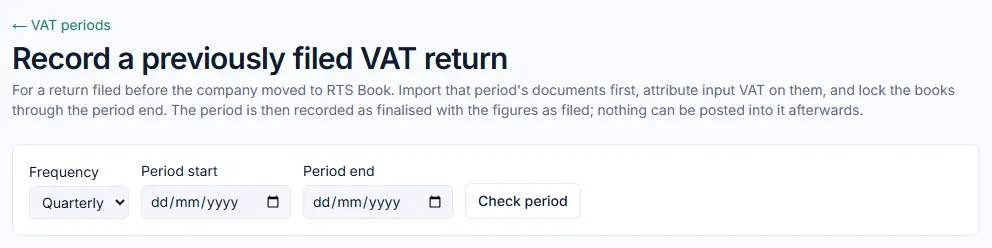
- Choose the Frequency: Quarterly or Monthly.
- Enter the Period start and Period end dates.
- Click Check period.
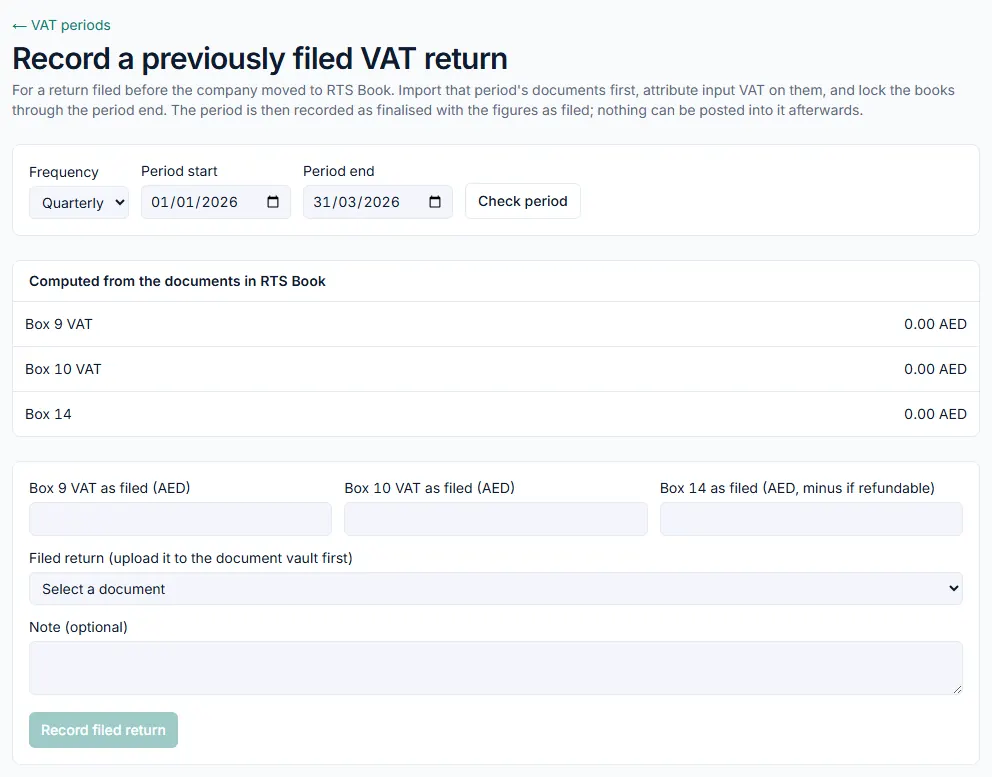
- Read the Computed from the documents in RTS Book box. It shows Box 9 VAT, Box 10 VAT and Box 14 as RTS Book calculates them from the imported documents.
- If a Cannot record yet box appears, fix each item it lists, then click Check period again.
- If a Lines without input VAT attribution box appears, tick the purchase lines, choose what their input VAT relates to in Input VAT relates to…, and click the Apply to button. It shows how many lines you ticked.
- Click Confirm. This choice cannot be changed here afterwards.
- When nothing blocks the period, the recording form appears. Enter Box 9 VAT as filed (AED).
- Enter Box 10 VAT as filed (AED).
- Enter Box 14 as filed (AED, minus if refundable). Type a minus sign before the amount if the return was a refund.
- In Filed return (upload it to the document vault first), choose the filed return document.
- If Boxes 9 and 10 as filed differ from the documents, a box asks you to explain why. Type the reason.
- Add a Note (optional) if you want.
- Click Record filed return.
What happens next
- RTS Book opens the new VAT period. It is recorded as finalised, with the figures as filed.
- At the top of the period, the As filed block shows Box 9 VAT, Box 10 VAT and Box 14 as filed beside what RTS Book computes, the difference, your explanation and a link to the filed return.
- Nothing can be posted into the period afterwards.
- In the VAT periods list, the period's Box 14 is marked as filed.
Common mistake
Typing Box 14 of a refund return as a positive number. A refundable return must be entered with a minus sign, for example -1250.00. Check the figure against the filed return before you click Record filed return, because the period is finalised as soon as you record it.
Related
Last updated: 3 November 2026