
Enter a supplier bill
3-minute read · Last updated 3 November 2026
Record a supplier's invoice as a bill, approve it so it reaches your books, then record the payment when you pay it.
Before you start
- Your role must allow you to manage bills. The Owner, Admin and Accountant roles can.
- The supplier must already exist. See Suppliers.
- Have the supplier's invoice in front of you. You will need their invoice number, the dates and each line.
- Use a bill when a supplier sends you an invoice to pay later. For something already paid, such as a receipt, see Record an expense.
Steps
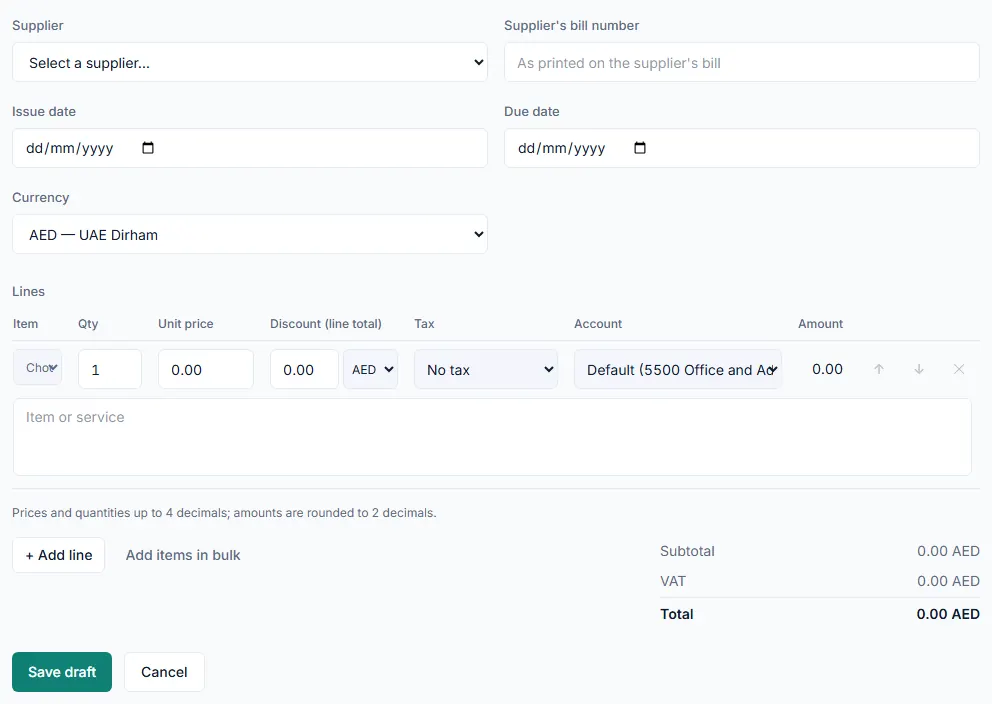
- Go to Purchases › Bills.
- Click New bill.
- In Supplier, choose the supplier. The Currency changes to the supplier's currency.
- In Supplier's bill number, type the number exactly as it is printed on the supplier's invoice.
- Enter the Issue date.
- Enter the Due date, if the invoice has one.
- Check the Currency. If it is not AED, type the Exchange rate for 1 unit of that currency in AED.
- Under Lines, describe the first item or service in the Item or service box. You can also pick it from your products.
- Enter the Qty and Unit price.
- In Tax, choose the tax code shown on the supplier's invoice, or No tax.
- In Account, choose the expense or asset account this line belongs to. If you leave it on Default, the line posts to the account named in brackets.
- Click + Add line for each further line on the invoice.
- Check the totals against the supplier's invoice.
- Click Save draft. The bill opens with the status Draft.
- Under Evidence, click Choose file and attach the supplier's invoice, or drag the file onto the box.
- Click Approve. The status changes to Awaiting payment.
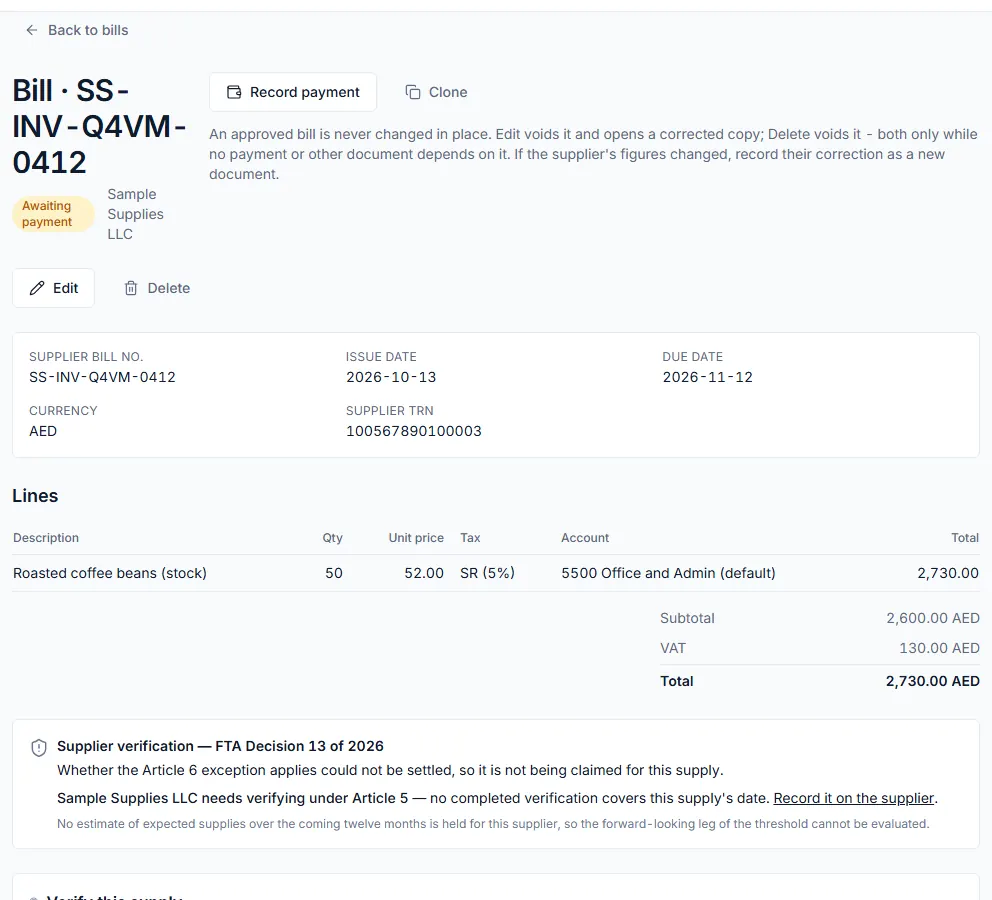
- When you pay the supplier, open the bill and click Record payment.
What happens next
- An approved bill is posted to your books and shows in the AP Aging report until it is paid. See Reports.
- After a payment the status becomes Partially paid or Paid. The bill's Payments section lists each payment.
- An approved bill is never changed in place. Before any payment, Edit voids it and opens a corrected copy. Once it is paid, a correction from the supplier is entered as a new document, for example with Correct with supplier credit note.
- Clone opens a new bill filled in from this one. Nothing is saved until you click Save draft.
Common mistake
The Approve button stays greyed out until the bill has the supplier's invoice number and a total above 0.00. If you left Supplier's bill number empty, type it in the Supplier's invoice number box on the draft and save it, then approve. If the number matches another bill from the same supplier, RTS Book warns you about a possible duplicate before it lets you continue.
Related
Last updated: 3 November 2026