
Upload documents to the vault and attach them
3-minute read · Last updated 3 November 2026
Keep receipts, supplier invoices, contracts and statements in the Document Vault, attach evidence to bills and expenses, and check each file's status.
Before you start
- To open the vault, your role must allow you to view documents. To upload, attach or archive files, it must allow you to manage documents. The Owner, Admin and Accountant roles can do both.
- Files can be PDF, JPG, PNG, CSV or XLSX. The size limit is shown under the upload button. Large photos are made smaller for you before they are sent.
- Files are stored privately. Every view and download is logged.
Steps
Attach evidence to a bill or expense
- Open the bill or expense. For example, go to Purchases › Bills and click the bill number.
- Scroll down to Evidence.
- Drag the file onto the box, or click Choose file and pick it.
- Wait while the button shows Uploading…. The file then appears in the list with its size and the date and time it was added.
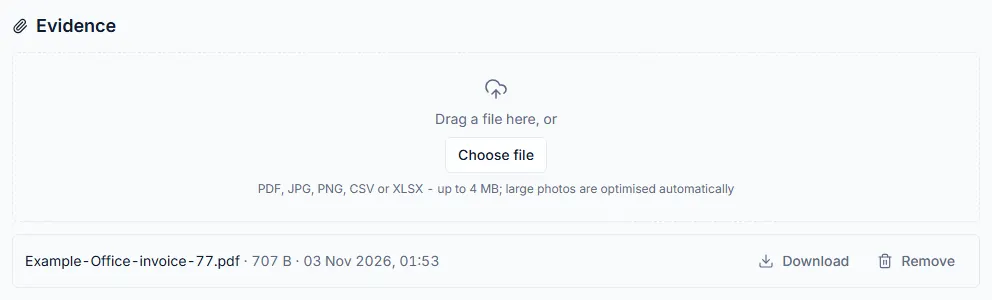
The same Evidence section is on invoices, quotes and expenses. On a supplier's page it is called Verification evidence.
Upload a document straight to the vault
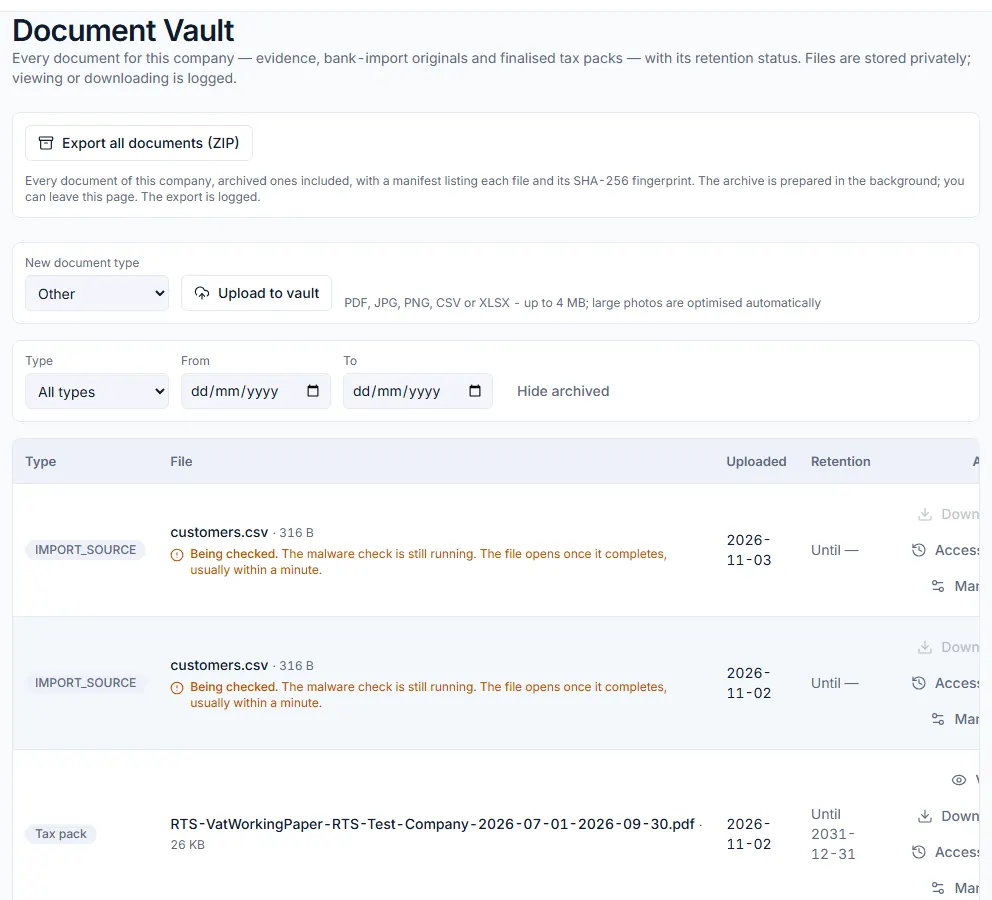
- Go to Documents › Document Vault.
- In New document type, choose Supplier invoice, Receipt, Contract, Bank statement or Other.
- Click Upload to vault and pick the file.
Find and open a document
- Use Type, From and To to filter the list. Click Clear to remove the filters.
- Click View to open a PDF or image in your browser, or Download to save it.
- Click Access log to see who opened or downloaded the file.
- Click Manage to place a retention hold, extend retention, link the file to a VAT period, CT period or tax filing, or archive it.
What happens next
- A file attached as evidence also appears in the Document Vault, with everything else for the company.
- Each upload is checked for malware. While the check runs, the file shows Being checked and cannot be opened. It usually opens within a minute.
- If a file shows Blocked, the check found a threat. The file is kept but will not be opened or downloaded.
- A password-protected PDF is accepted with a warning, but it cannot be checked, opened or downloaded. Upload a copy without the password instead.
- The Retention column shows the date the file must be kept until. Held means a hold is placed on it.
- Clicking Remove on evidence, or Archive in the vault, sets the file aside. It is never deleted.
Common mistake
Uploading a supplier's invoice to the vault and expecting it to appear on the bill. A file uploaded in the vault is not attached to any bill or expense, and the vault has no button to attach it to one. To attach evidence to a transaction, upload it from the Evidence section on that transaction's page.
Related
Last updated: 3 November 2026