
Run payroll and payslips
4-minute read · Last updated 3 November 2026
Create a pay run for the month, calculate it, approve it with your code, and download the payslips. Payroll access is given by the company owner.
Before you start
- Payroll is visible only to the company owner, unless the owner gives payroll access to someone else. Payroll access is separate from the user's role.
- To create and calculate a run you need Edit employees and calculate draft payroll. To approve a run, post it, record the payment and lock the month you need Approve payroll, lock periods, produce the WPS file (needs an authenticator code).
- Your employees must be set up with their contracts. Each employee's contract and pay are on the employee page under Payroll › Payroll.
- Approving needs a live code: an authenticator code, or a code sent to your sign-in e-mail if you have no authenticator app.
Steps
Give payroll access (owner only)
- Go to Settings › Users. See Invite users and set their roles.
- On the person's row, click Payroll access.
- Tick the permissions to give: See employees and salaries, Edit employees and calculate draft payroll, Approve payroll, lock periods, produce the WPS file (needs an authenticator code), or Unmask Emirates ID, passport and IBAN (needs an authenticator code).
- Enter Your password, and the Authenticator code (if two-factor sign-in is on).
- Click Save. The access applies to this company only and does not change the person's role.
Create and calculate the run
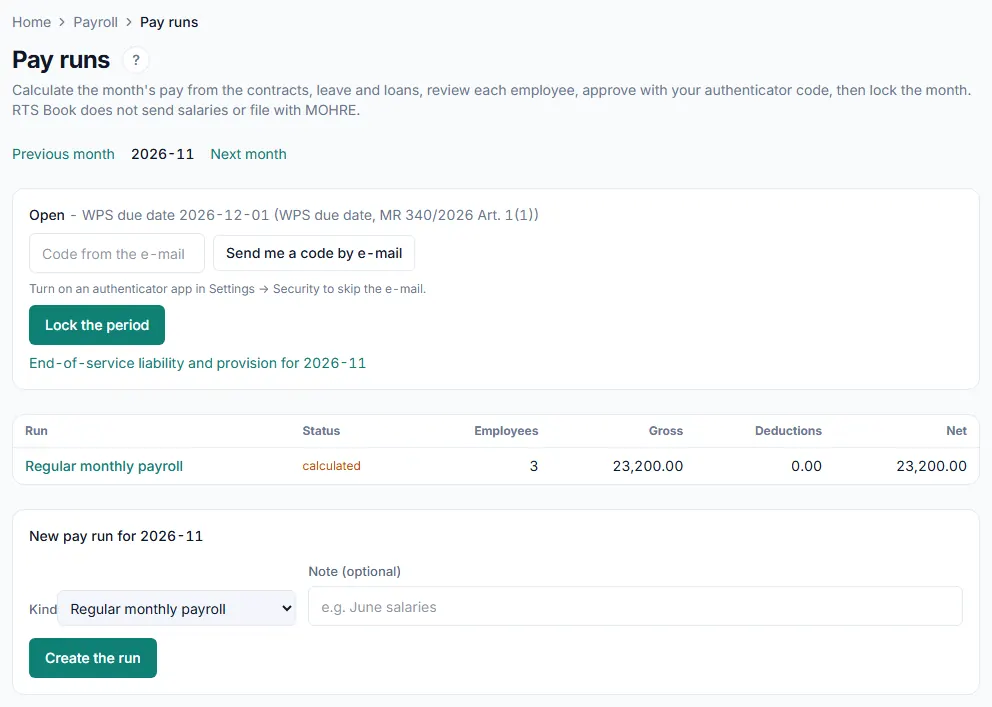
- Go to Payroll › Payroll.
- Click Pay runs.
- Use Previous month and Next month to show the month you want to pay.
- In the New pay run for box, choose the Kind: Regular monthly payroll for the month's salaries, or Off-cycle (bonus / correction) for a bonus, commission or arrears.
- Add a Note (optional), for example the month's name.
- For an off-cycle run, choose the Employee, the component and the amount on each line. Click Add a line for more.
- Click Create the run. RTS Book opens the new run.
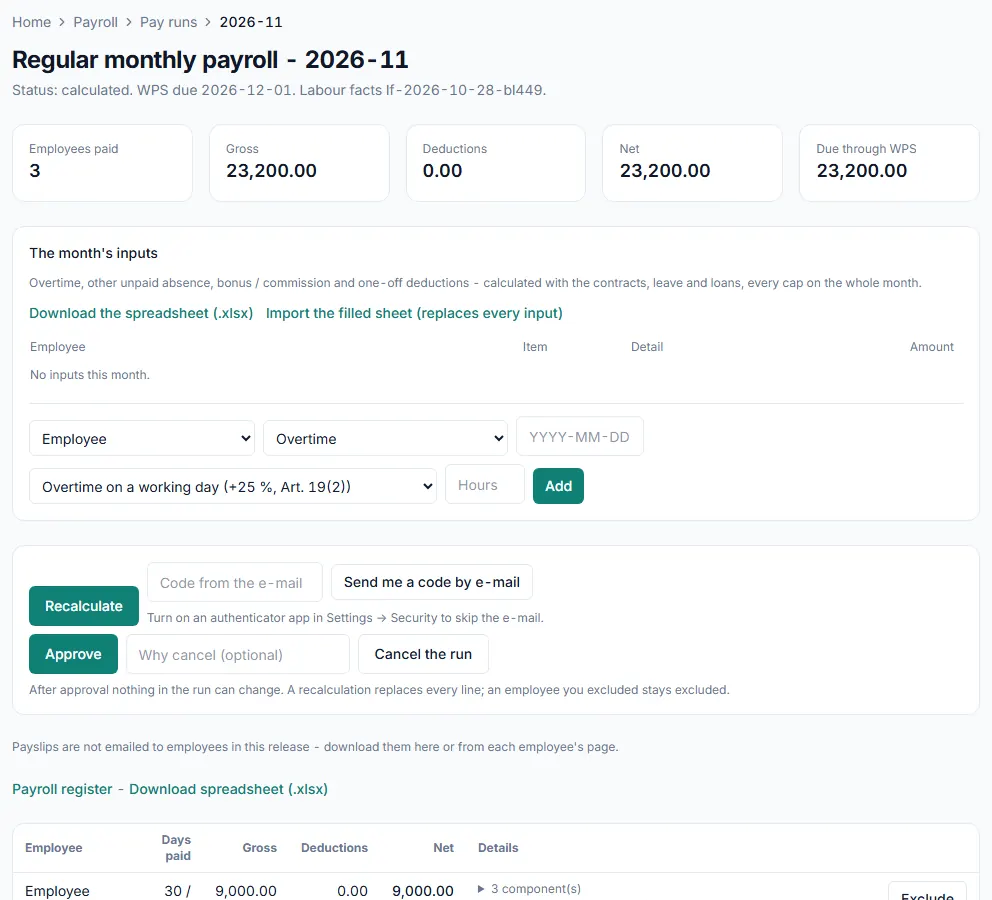
- For a regular run, enter anything extra for the month in The month's inputs, such as overtime, unpaid absence, a bonus or a one-off deduction.
- Click Calculate. RTS Book works out each employee's pay from the contracts, leave and loans.
- Check each employee's line: Days paid, Gross, Deductions and Net. Open the components under Details to see how each amount was worked out.
- If an employee could not be calculated, the reason shows on the line. Fix the cause and click Recalculate, or click Exclude, type a reason and click Exclude from this run.
Approve the run and get the payslips
- Type your authenticator code, or the code from the e-mail, in the code box.
- Click Approve. After approval nothing in the run can change.
- Find the Payslips line. RTS Book issues the payslips when the run is approved.
- Click Download all (ZIP) for every payslip, or click Download on one employee's line.
- If a payslip shows Not generated, click Generate payslips.
Post, pay and lock the month
- In the Ledger box, enter your code and click Post to ledger. This writes one journal for the run.
- When you have paid the salaries, fill in Record payment: the Amount (AED), Paid on, Paid from and Reference (optional). Enter your code and click Record payment.
- When every run of the month is approved or cancelled, go back to Pay runs, enter your code and click Lock the period.
What happens next
- RTS Book does not send salaries and does not file with MOHRE. You pay the salaries through your bank and record the payment here.
- For the WPS salary file of an approved run, see Create the WPS salary file.
- Payslips are not e-mailed to employees in this release. Download them from the run, or from each employee's page.
- Click Payroll register on the run for the full register, or click Download spreadsheet (.xlsx) on the run to save the register as a spreadsheet.
Common mistake
Changing a leave, a loan or the month's inputs after calculating, then trying to approve. RTS Book refuses and asks you to recalculate. Click Recalculate, check the lines again, and then approve.
Related
Last updated: 3 November 2026